Using the IDE
IDE overview
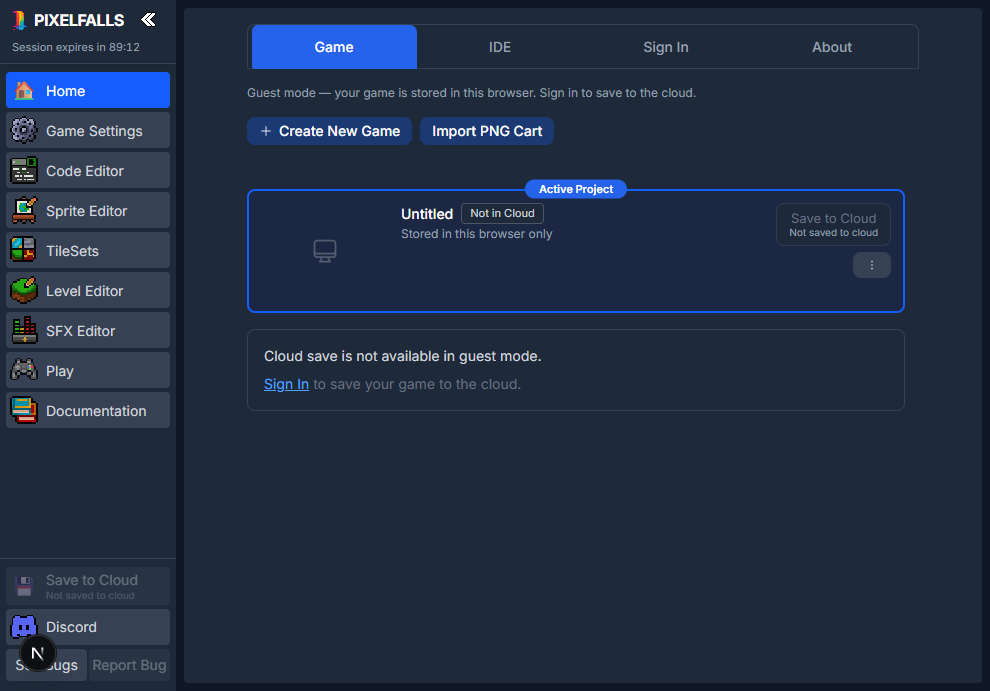
PIXELFALLS keeps your code, sprites, maps, sound effects, and game settings in one project. Use the sidebar to move between each part of your game.
A typical workflow
- Create a game from Home → Projects, or import an existing PNG cart.
- Set the title, author, instructions, palette, and runtime options in Game Settings.
- Write your game logic in the Code Editor.
- Create artwork in the Sprite Editor.
- Build reusable terrain in Tile Sets and assemble maps in the Level Editor.
- Create short sounds in the Sound Editor.
- Run, debug, and profile the game in Play.
- Save to the cloud or export a PNG cart.
Sidebar sections
- Home manages projects, IDE preferences, your account, billing, and product information.
- Game Settings contains project metadata and game-wide runtime options.
- Code Editor is where you write Lua and configure Node classes.
- Sprite Editor creates 8×8 sprites and sprite sheets.
- Tile Sets creates reusable autotiling terrain.
- Level Editor builds maps from tiles and Nodes.
- Sound Editor creates sound effects on a pitch-and-time grid.
- Play runs the current project and displays logs and performance information.
- Documentation contains these guides, programming concepts, and the Lua API reference.
Home
Home is divided into four tabs:
- Projects creates, imports, opens, saves, exports, shares, and deletes games. Signed-in users also see cloud storage usage.
- IDE stores editor preferences such as code-completion keys, sprite-wheel behavior, cursor spotlighting, and grid and viewport colors. These preferences affect the IDE, not the exported game.
- Account manages sign-in, display name, password, subscription, and account deletion.
- About shows the IDE version and links to the welcome guide, changelog, terms, and privacy policy.
In guest mode, Projects is labelled Game and Account is replaced by Sign In. Guest projects stay in the current browser session. Sign in to save games to the cloud or export PNG carts. Features that require an account or paid plan remain visible but disabled, with a tooltip explaining the requirement.
Creating, importing, and exporting
Use Create New Game to reset the editor to a new project. Import PNG Cart restores a PIXELFALLS cart from disk. You can also drag a PNG cart anywhere over the IDE to import it.
The local editor row in Home → Projects represents the project currently open in memory:
- Open in Editor moves to Game Settings.
- Save to Cloud updates the linked cloud game.
- Save As creates a separate cloud copy.
- Export downloads the project as a playable PNG cart.
Importing or creating another game replaces the current in-memory project. Save or export work you want to keep first.
Saving and sharing
Saving stores an editable project in your cloud library. Sharing publishes a playable release for other people. A cloud game can have private builds without updating its public release.
The sidebar also provides quick file actions. Guest users can import and edit carts, but cloud saving, publishing, and PNG export require sign-in.
Learn each workspace
- Tools & Shortcuts — buttons, keys, and modifiers for every editor
- Game Settings
- Code Editor
- Sprite Editor
- Tile Sets
- Level Editor
- Sound Editor
- Play and Debugging
- Debugger
Built-in documentation
Open Documentation from the IDE sidebar to read guides without leaving your project. Expand a section in the documentation sidebar, or use Search API under API Reference to find Lua functions and constants.
Editor surfaces that are still under development are intentionally omitted from these guides until they are generally available.