Using the IDE
Code Editor
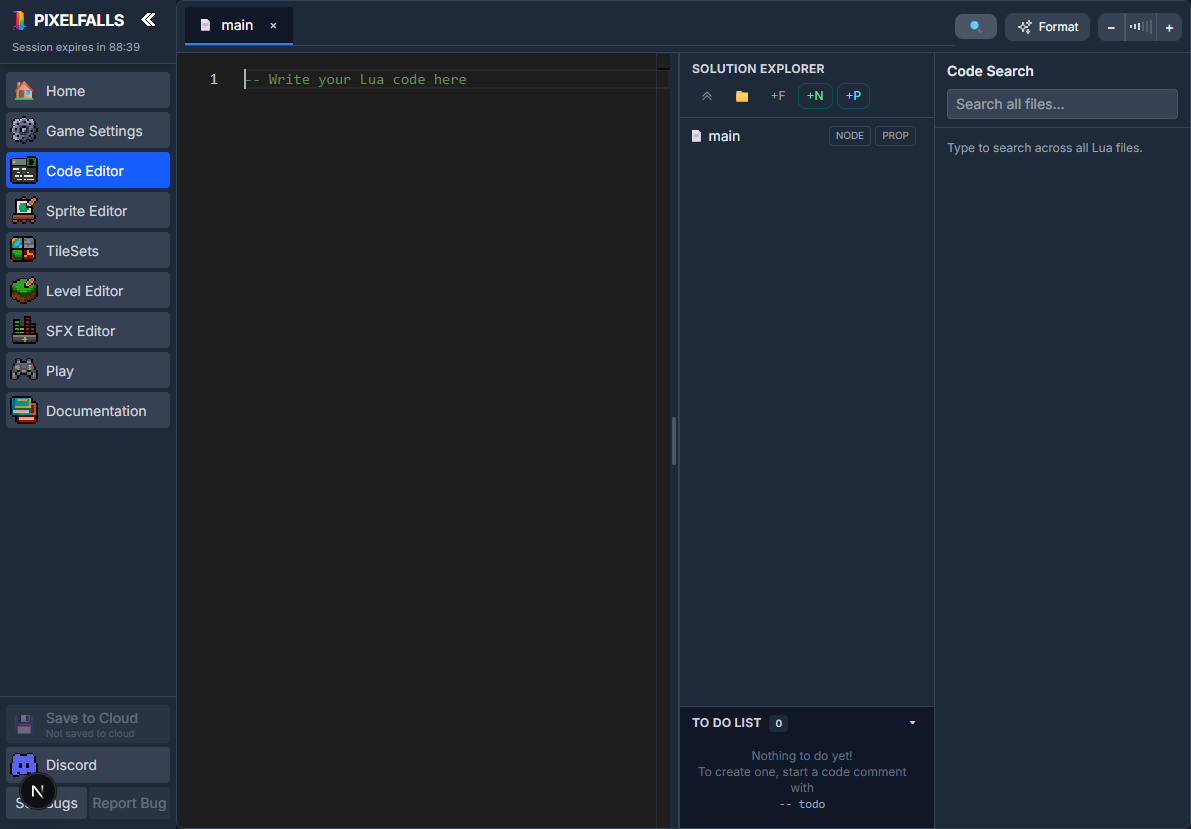
The Code Editor is where you write the Lua that controls your game. It combines a tabbed editor with a Solution Explorer for organizing files and configuring Node classes.
Project files
Every project has a main file. It is the entry point for game-level lifecycle functions such as init(), update(), and draw().
You can also create:
- ordinary Lua files for reusable functions and project organization;
- Node classes for reusable, placeable game objects (empty script = settings and drawing only; type in the editor to add a script);
- folders for grouping related files.
PIXELFALLS loads project files as one cart environment. Do not use require() to load another project file. See Std Lua Libraries, Core Concepts / Architecture, and Nodes.
Solution Explorer
Use the Solution Explorer to:
- create files, folders, and Nodes;
- open a script tab (empty script = no script yet; double-click for settings);
- rename, move, and delete project items;
- identify Node classes with a cube icon (hollow = no script, solid = has a script);
- Make Node Class (plain file), Clear Script, or Make as File from the context menu;
- open class settings and spatial properties;
- review project Todo items.
The divider beside the Solution Explorer can be dragged to resize it.
Tabs and editing
Opening a file adds it to the tab bar. Use tabs to move between files without losing your cursor position. Standard editor commands such as selection, find, undo, redo, copy, and paste behave like they do in other code editors.
The editor provides:
- Lua syntax highlighting;
- completions for Lua, PIXELFALLS APIs, and project symbols;
- function signatures and parameter information;
- references to Nodes, methods, and properties;
- zoom controls;
- code formatting with StyLua.
Choose whether Tab or Enter accepts suggestions under Home → IDE. That page also controls function-declaration highlighting and cursor spotlighting when changing tabs.
Search and navigation
Press Ctrl/Cmd+Shift+F to search across project code. Select a result to open its file and location.
Errors printed in Play can contain a source file and line. Select the source link in the console to return directly to that location in the Code Editor.
Formatting
Press Shift+Alt+F to format the active file. Formatting normalizes indentation and layout without changing what the Lua does.
Node class settings
Node files have settings beyond their Lua source. Open their settings from the Solution Explorer to configure details used when instances are placed in a map, including sprite and collision information.
Tags created in Game Settings can be assigned to classes and referenced in Lua through tag.name.
Instance-specific values are edited in the Level Editor. Class settings define defaults; instance settings can override supported properties for one placed object.
Common shortcuts
- Ctrl/Cmd+Z — Undo
- Ctrl/Cmd+Y or Ctrl/Cmd+Shift+Z — Redo
- Ctrl/Cmd+F — Find in the current file
- Ctrl/Cmd+Shift+F — Search the project
- Shift+Alt+F — Format the current file
- Ctrl/Cmd+C, X, V — Copy, cut, and paste
Where to find API help
Open Documentation → API Reference for functions and constants available to carts. Search API searches names, signatures, parameters, and descriptions.
Useful starting points: