Using the IDE
Game Settings
Game Settings controls project metadata and options that affect the exported game. Preferences that only change the editor are under Home → IDE instead.
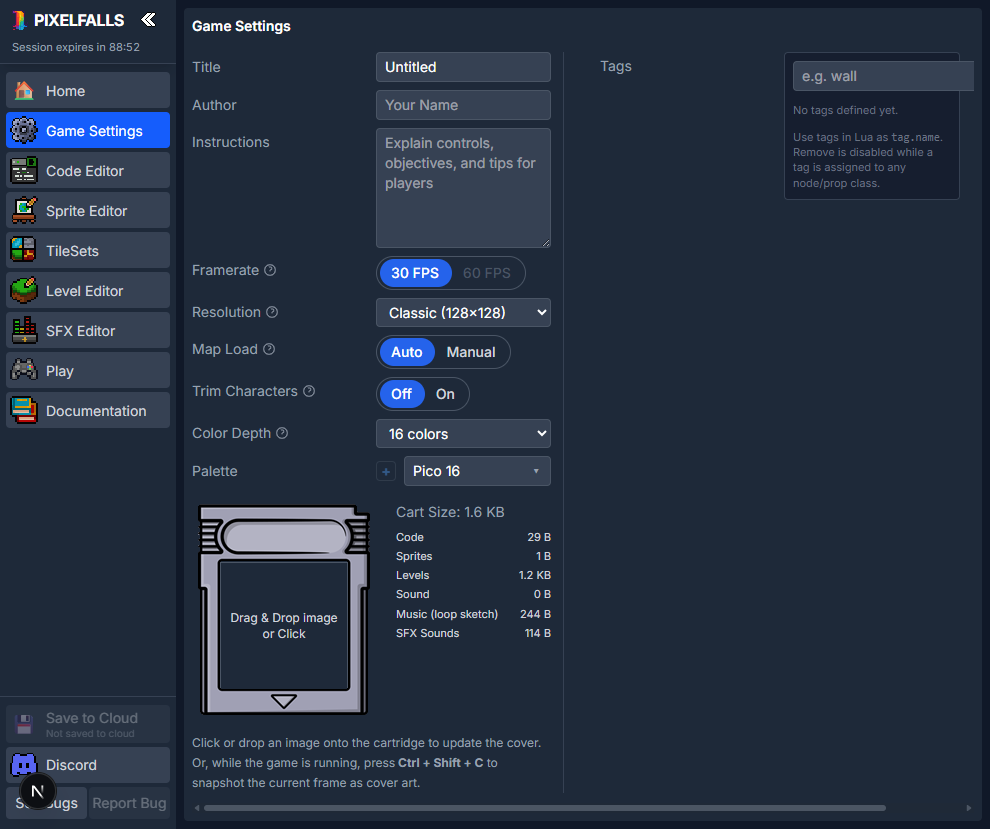
Game information
- Title is the name shown for the game.
- Author identifies its creator.
- Instructions should explain controls, objectives, and useful tips. They appear beside the game in Play and can also be updated by the running game.
- Version appears for cloud-linked games. The build number increases on cloud saves and the release number increases when the public game is shared or updated.
- Bump Major marks a major milestone, resets the release number to zero, and keeps the current build number.
Cover art
Click the cartridge cover or drag an image onto it to set the 128×128 cover art. Images are fitted inside the cartridge frame.
You can also capture the current game frame:
- Open Play and run the game.
- Focus the game.
- Press Ctrl/Cmd+Shift+C.
The captured frame becomes the project cover. See Play and Debugging.
Runtime settings
Framerate
All projects can use 30 FPS. 60 FPS provides smoother motion but requires a paid plan and may use more CPU on low-end devices.
Resolution
Guest and Free projects use Classic 128×128. Paid projects can also choose Game Boy 160×144, Demake 256×144, SNES 256×224, or Mega Drive 320×224. Existing maps are not resized when you change it. A project that already uses another size keeps that size and opens read-only on Guest or Free until you upgrade.
Map Load
- Auto calls
loadMapEntities(0)when the game starts. - Manual leaves map loading to your Lua code.
Use Manual when the first map should not load immediately or when your code controls map transitions itself. See Loading Map Entities.
Trim Characters
When enabled, empty columns around each font character are removed when text is drawn. PIXELFALLS then calculates tighter character and word spacing.
Color depth and palettes
Color Depth controls the number of palette colors available to sprites and maps:
- Guest and Free projects can use 4 or 16 colors.
- Paid projects can also use 32, 64, or 128 colors.
Changing color depth also selects a compatible default palette. Open Palette to choose another built-in palette.
Paid projects can import a custom palette from a PNG that is one pixel high and exactly as wide as the selected color depth. For example, a 16-color palette must be 16×1 pixels. Custom palettes can be deleted after switching away from them.
Collision tags
Tags give collision groups readable names such as wall, enemy, or pickup.
- Enter a name and select Add.
- Assign the tag to Node classes from the Code Editor.
- Refer to it in Lua as
tag.name, such astag.wall.
Tags can be renamed without changing their internal identity. Remove is disabled while a tag is assigned to a Node class.
See Nodes and Collision API.
Cart size
The cart-size panel estimates how much space each part of the project uses:
- Code
- Sprites
- Levels
- Sound
- Music data
- SFX sounds
Use it to identify which assets contribute most to the exported cart. Empty default sections are omitted automatically where possible.
Cloud and tier-dependent controls
Unavailable settings remain visible and disabled. Hover them to see whether they require sign-in, a paid plan, or a future IDE update. If a project uses capabilities above the current account tier, the IDE may open it read-only until the project is made compatible or the account is upgraded.