Using the IDE
Level Editor
The Level Editor builds maps from sprite tiles and placed Node instances. Its tools change according to the selected layer type.
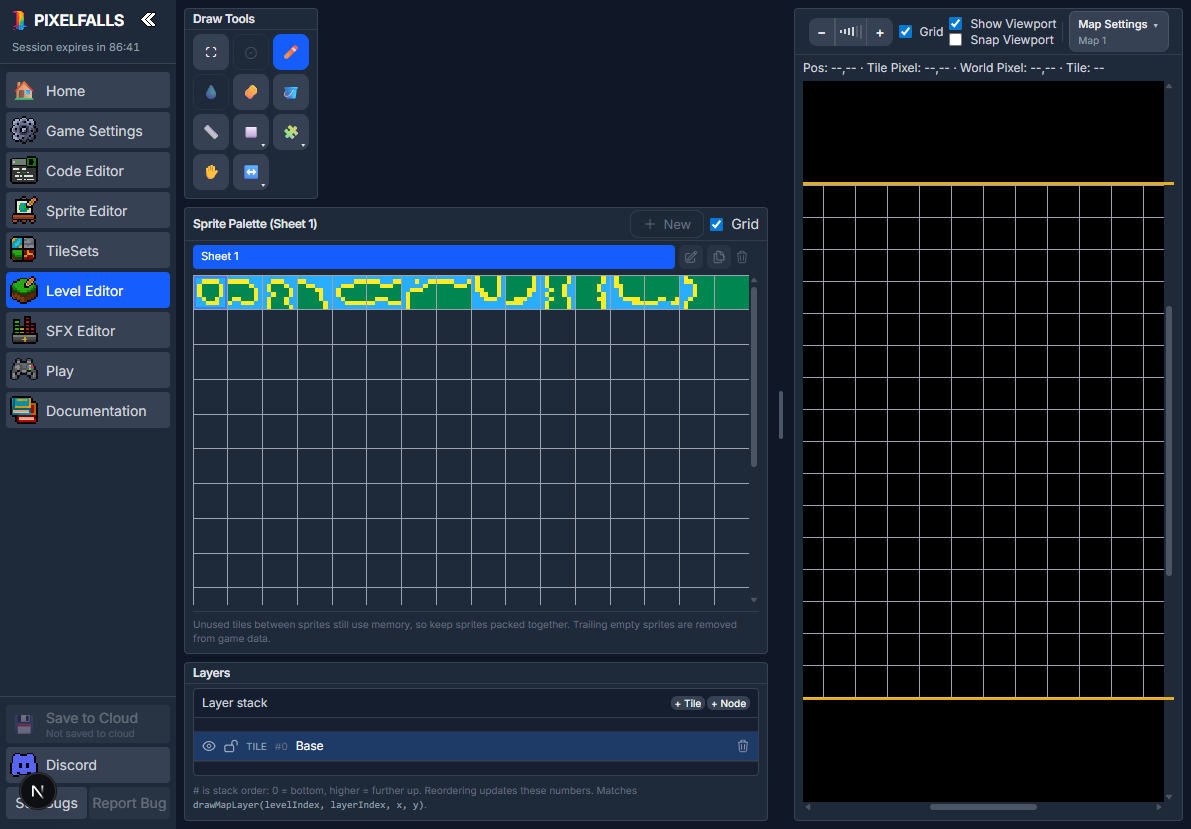
Maps and map settings
Open the map menu in the Level Editor header to:
- create a map;
- select an existing map;
- rename, duplicate, or delete a map;
- change the current map width and height;
- manage its layers.
Guest and Free projects can contain one map. Paid projects can contain multiple maps.
Map size limits
- Guest maps can be up to 64×64 tiles.
- Free maps can be up to 128×64 tiles.
- Paid maps can use an axis up to 4,096 tiles with a maximum of 65,536 cells in total.
For example, a paid map can be 4,096×16 or 256×256, but not 4,096×4,096.
Changing the game’s screen settings does not resize existing maps.
Layers
Every map has an ordered layer list. Higher layers are drawn over lower layers.
Layers can contain:
- Tiles, painted from project sprite IDs;
- Nodes, containing instances of Node classes.
Use the Layers panel to add, select, reorder, rename, show, hide, lock, or delete layers. Locked tile layers cannot be edited. Guest and Free maps support up to four layers; paid projects can add more.
Painting tile layers
Select a tile layer to show the Sprite Palette. Click one sprite, or drag over several sprites to make a rectangular multi-tile brush.
Tile layers support:
- Brush and Erase;
- Fill, Line, and Shape;
- rectangular selection, move, cut, copy, and paste;
- transforms;
- Autotile.
Right-click or Alt-click a map tile to select its sprite in the palette. Hold Space or drag with the middle mouse button to pan. The mouse wheel changes map zoom.
See Tools & Shortcuts and Sprite Editor.
Autotile
Press A or select Autotile, open its options, and choose a Tile Set. Painting then chooses edge and corner sprites based on neighboring autotile cells.
Autotile places one calculated sprite per map cell, even when the ordinary tile brush contains several sprites. Create and test source terrain in Tile Sets.
Selecting tiles
Use Select to drag a tile rectangle:
- Shift adds to the selection.
- Ctrl/Cmd subtracts from it.
- Ctrl/Cmd+C, X, and V copy, cut, and paste.
- Enter or a click commits floating pasted tiles.
- Escape cancels a floating paste.
- Delete or Backspace clears selected tiles.
Working with Node layers
Select a Node layer to show the Node palette.
- Choose a class and use Brush (
B) to place an instance. - Hold Shift while placing to snap it to the tile grid.
- Use Erase (
E) to remove an instance. - Use Node (
N) to select or move an individual instance. - Use Select (
S) to box-select and move several instances.
Fill, Line, Shape, Transform, and Autotile do not apply to Node layers.
Create and configure classes in the Code Editor. See Nodes for lifecycle and scripting concepts.
Instance properties
Selecting a Node displays instance properties such as:
- X and Y position;
- visible and enabled state;
- collision participation;
- automatic or overridden Z draw order;
- scale;
- custom property values.
Class settings supply defaults. Changes in the Level Editor affect the selected map instance.
Node and collision overlays
Node Debug controls can display class origins and collider shapes. Collider appearance distinguishes enabled and disabled collision behavior.
Use Show Colliders in Play to inspect the corresponding runtime collision shapes.
Sprite wheel
Hold Ctrl/Cmd while using a compatible tile tool to open the radial sprite wheel. It contains recently used sprites for quick selection.
Choose whether the wheel selects on click or when the pointer is released under Home → IDE.
Viewport overlay
The viewport outline shows one game screen inside the map. It helps compose rooms, camera bounds, and entrances without changing the map or restricting where the camera can move.
Change the grid and viewport colors under Home → IDE.
Common shortcuts
- B, E, F, L, U, A — Brush, Erase, Fill, Line, Shape, Autotile
- S — Select
- N — Node tool
- Space — Temporary pan
- Ctrl/Cmd+Z — Undo
- Ctrl/Cmd+Y or Ctrl/Cmd+Shift+Z — Redo
- Arrow keys — Nudge selected Nodes by one game pixel
- Delete/Backspace — Delete selected tiles or instances