Nodes
What are Nodes?
Nodes let you create many independent objects from a single definition. Each node has its own properties (position, health, etc.) and can run lifecycle methods such as update() and draw() each frame. They are useful for enemies, bullets, particles, pickups, walls, scenery, and anything that appears in multiples or needs to be created and removed at runtime.
In other engines you might know this idea as entity, gameObject, actor, or class.
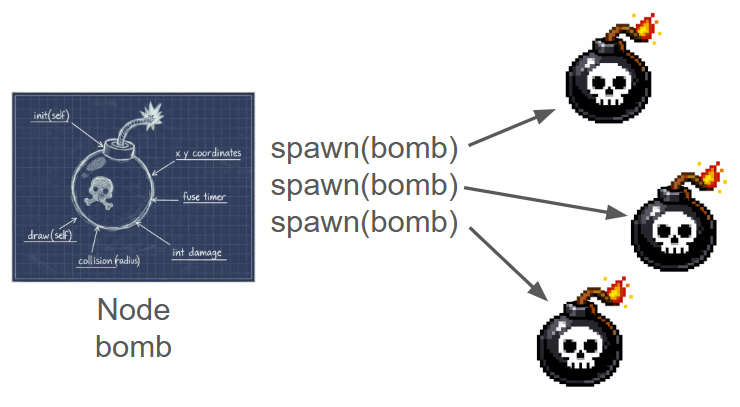
Think of a Node file as a blueprint—like the blueprint of a house. The blueprint is just the instructions for what you want to create. To actually have a house (or many of the same houses), you need to build them.
In PIXELFALLS it's the same concept: you mark a file as a Node and define what properties each instance has—e.g. health, position, or moveDirection. When you create an instance with spawn(nodeName), the engine gives each instance its own copy of those properties.
Nodes with and without a script
Every placeable class is a node.
- No script — the engine draws its default sprite and runs collisions from class settings. No Lua instance is spawned.
- Has a script (any non-empty content) — the engine spawns a Lua instance so the node can hold its own variables. Lifecycle methods (
init,update,draw, and so on) are optional — add them when the engine should call them each frame or on enable.
In the IDE, New Node creates a class (often with an empty script). Open it in the Code Editor and type to add a script; use Clear Script to remove one. Double-click for settings. Context menu: Make Node Class (plain file), Clear Script, Make as File.
Nodes without a script still support tags and colliders. For example, many visually different walls can share tag.wall so the player only checks collision with that tag.
Node Properties
Every node instance has built-in properties:
x/y— position (in pixels).- When you call
spawn(node, x, y)in code, the engine sets these on the instance beforeinit()runs, so you don't need to assign them ininit()unless you want to change them.
- When you call
z— draw order (higher values draw on top)visible-true- mode is drawn -draw()anddrawUI()are called (if implemented)false- node is not drawn -draw()anddrawUI()are not called. Useful for hidden triggers or toggling visibility.
enablefalsenode is dormant - stays in memory but no methods run.init()is not called untilenablebecomestruetrue- node is active -update(),draw(), anddrawUI()run as usual. Use this for nodes you want to activate later.
type— class id for this instance (set when youspawn()or when the level loads).- Use with
isType(),getAllEntities, and tag-based queries; see Collision.
- Use with
When node instances are placed on a Node layer in the Level Editor, the engine sets x, y, visible, enable, and z from the values you set in the editor (position, visibility, and so on) before init() runs. That automatic setup applies only to level-placed nodes. When you call spawn() in your own code, you only pass position (and optionally properties); visible, enable, and z then use default values (visible and enabled on, z = 0).
Tags — Each node type can carry one or more tags you define in Game Settings. Tags are metadata on the type (not geometry). At runtime, enum-style tag.<name> (for example tag.wall) identifies those types in getAllEntities, hasCollided, and similar APIs. See Collision for examples.
Colliders — are defined per node type in the Code Editor. They describe where the instance occupies space for overlap checks: hasCollided / getCollidedEntities / getCollidedPairs use collider geometry against other instances’ colliders. Give each shape an id to query sensors separately (for example feet vs proximity) — see the collision page.
Sprite origin (originX, originY) — On the node type you can set an origin for the default sprite (the one drawn when the node file has no draw()). The engine shifts the sprite so that x and y act as the anchor. Values are configured in the Code Editor and are used for default-sprite drawing and (for level-placed nodes) related layout.
Node Lifecycle Methods
A node may optionally use the same lifecycle methods as the main file, with one difference: each method receives a reference to the instance (we suggest naming this parameter self). A node can include:
init(self)— called when the instance is createdupdate(self)— called every framedraw(self)— called every frame to render - Will override the default sprite draw if defined.drawUI(self)— called every frame for UI layerdestroy(self)— called when the instance is removed (e.g. when you calldestroy(node))
The engine calls these methods automatically.
Example: using the built-in position and draw order:
function update(self) self.x = self.x + 1 end function draw(self) drawSprite(1, self.x, self.y) end
Adding Custom Properties
You can give each instance its own data by adding properties to self. Besides the built-in x, y, z, visible, enable, and type, you might add things like health or speed. It's best to set these in init(self). When you pass arguments to spawn() (e.g. position), the engine sets x and y on the instance before calling init(). For nodes placed on a Node layer, it also sets visible, enable, and z from the level before init() runs. So in init(self, x, y, properties) you can use or override those values.
function init(self) self.health = 100 self.speed = 2 end
Use these properties in update, draw, or any other method in the same node:
-- inside an 'enemy' node file function update(self) -- ... logic to check if the enemy was hit ... if hit then self.health = self.health - 5 end end
Parameters When Spawning
init(self) can take extra arguments after self. Those arguments are passed when you call spawn(), which is handy for setting each instance's starting state (e.g. position). The engine sets x and y on the instance before init() runs (from the arguments you pass to spawn(), or from the level when the node was placed on a Node layer). So you can use init(self, x, y, properties) to read the position and properties but don't need to assign self.x and self.y unless you want to change them.
function init(self, startX, startY) self.x = startX self.y = startY end
From the main file (or another node), pass the same arguments to spawn():
spawn(enemy, 10, 10) spawn(enemy, 50, 20) spawn(enemy, 60, 40)
That creates three enemy instances at different positions.
Default Sprite (No Code Required)
You can assign a sprite to a node type in the Code Editor (Node properties for that file). When you place instances of that node on a level, the engine can draw that sprite automatically at runtime—you don't need to write draw() in the node file.
- If the node type has a default sprite and the node file does not define
draw(), the engine draws the sprite at the node'sx,yeach frame. - If the node file does define
draw(), only yourdraw()runs; the default sprite is not drawn. Use this when you want custom drawing (animation, effects, or conditional visibility).
So: set a sprite in the Code Editor for quick placeholder art; add a draw() method when you want full control.
If a class has no sprite, you can still pick an editor icon and icon colour in Create/Edit Node. Those appear in Solution Explorer, the node palette, and the Level Editor only — they are not drawn in-game. With no colour chosen, nodes without a script use grey and nodes with a script use sky.
Spawning From the Level (Node Layers)
In the Level Editor you can add Node layers and place node instances by clicking or dragging. Each placed instance stores the node type, position (x, y in pixels), and optional properties (e.g. custom key/value pairs). The engine does not run your game logic in the editor—placement is visual only.
When the game runs, the engine spawns those instances for you. On startup, it calls spawnMapNodes(0) (for level index 0) so that every node you placed becomes a real instance. For these level-placed nodes, the engine sets x, y, visible, enable, and z from the values stored in the level (the ones you set in the Level Editor), then calls init(self, x, y, properties) (unless the instance was created with enable == false, in which case init runs the first time the node becomes enabled).
Enable / Visible Lifecycle Callbacks
Nodes can react when they are enabled/disabled or shown/hidden by defining optional lifecycle methods:
onEnabled(self)— called once whenenablechanges fromfalsetotrue.onDisabled(self)— called once whenenablechanges fromtruetofalse.onShown(self)— called once whenvisiblechanges fromfalsetotrue.onHidden(self)— called once whenvisiblechanges fromtruetofalse.
These methods are only called when the state actually flips. Setting self.enable = true again when it is already true does not trigger onEnabled, and the same for visible.
Example:
-- enemy.lua function onEnabled(self) -- Node just became active (e.g. spawned or re-activated) sfx(0) end function onDisabled(self) -- Node was deactivated (paused or removed from play) sfx(1) end function onShown(self) -- Node became visible again end function onHidden(self) -- Node was hidden (but may still be updating) end
Remember:
enable == falsemeans the node does not runinit,update,draw, ordrawUIuntil it becomes enabled.visible == falsemeans the node still updates, but itsdraw/drawUI(and any default sprite) are skipped until it becomes visible again.
You don't have to call spawnMapNodes() yourself from init() unless you use a different level index—the runtime wraps your init() and runs spawnMapNodes(0) before it. To spawn from another level (e.g. after loading a different map), call spawnMapNodes(levelIndex) from your code.
Tutorial: A Bomb Node
Here’s a complete example: a countdown bomb that you can spawn in multiple places.
Setup
-
Start a new game
-
In the code editor, create a new file named
bomb -
Enable the Node toggle next to the
bombfilename.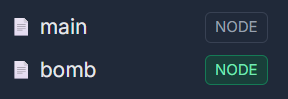
-
Paste this code into the bomb file:
function init(self, x, y) self.x = x self.y = y self.cycleTime = 60 -- frames per tick (adjust for faster/slower countdown) self.bombTime = 5 -- number shown on the bomb end function update(self) self.cycleTime = self.cycleTime - 1 if self.cycleTime == 0 then self.bombTime = self.bombTime - 1 self.cycleTime = 60 end if self.bombTime == 0 then destroy(self) end end function draw(self) drawFillCircle(self.x, self.y, 4, 5) drawText(tostring(self.bombTime), self.x - 2, self.y - 2, 8, 1) end
If you run the game now, nothing appears—no instances of the bomb have been created yet.
Spawning from Main
- In the Main file, add:
function init() spawn(bomb, 60, 60) end function draw() clearScreen() end
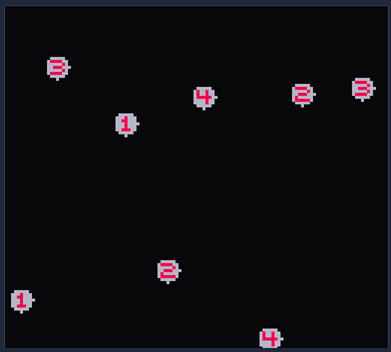
Run the game again. You should see a single bomb at the center counting down from 5, then disappearing.

Spawning on input
- Replace the Main code with this so you can place bombs with a button:
function update() if buttonPressed(BTN_A) then spawn(bomb, math.random(5, 120), math.random(5, 120)) end end function draw() clearScreen() end
Press A (default key Z) to spawn bombs at random positions. Note that each has its own countdown.