Using the IDE
Play and Debugging
Play runs the current project in the PIXELFALLS runtime and combines the game display with instructions, console output, collision visualization, and performance charts.
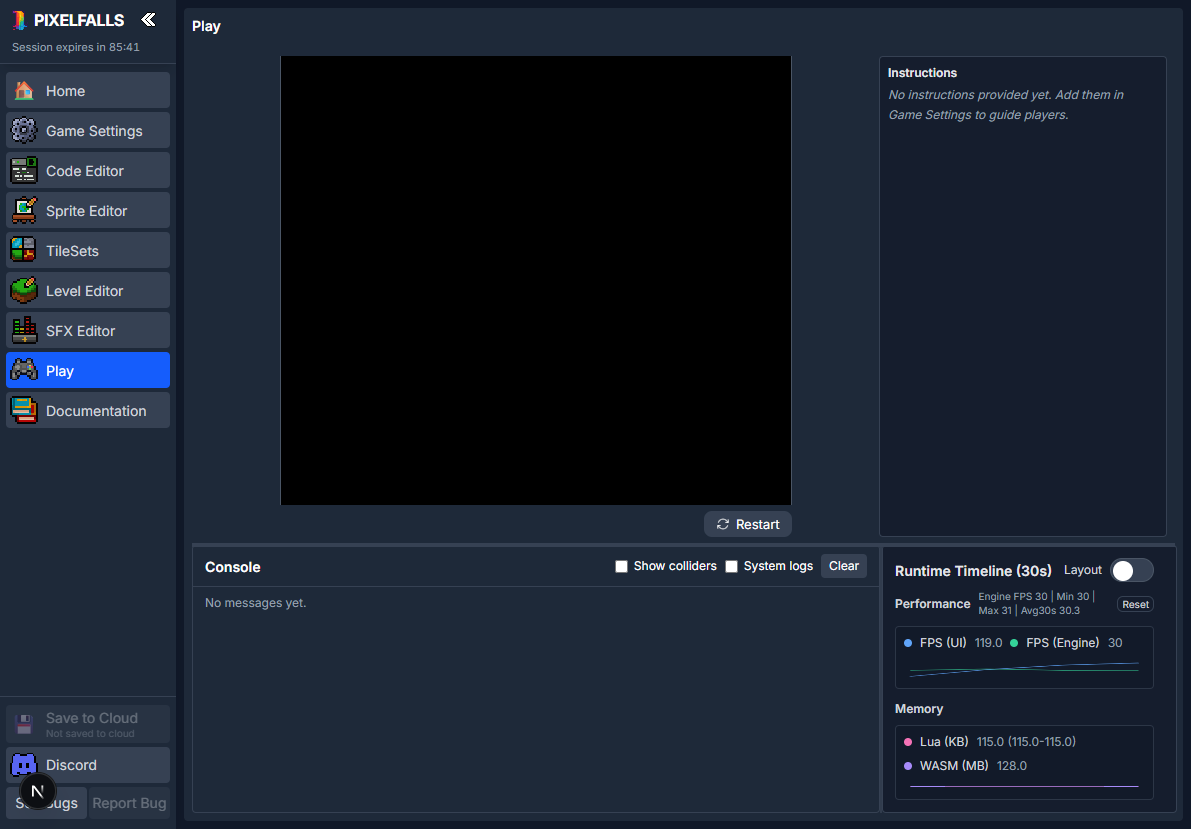
Running the game
Open Play from the IDE sidebar. The current project is built and loaded into the game display.
Select Restart to reload the cart and begin again from its initial state. Restarting clears runtime state but does not discard editor changes.
The game canvas receives keyboard input when it is focused. PIXELFALLS focuses it when playback becomes ready; click the canvas if input has moved to another control.
Input
Games read logical buttons such as BTN_UP, BTN_A, and BTN_L, rather than raw keyboard keys.
Default keyboard bindings include:
- arrow keys for the D-pad;
- Z, X, A, and S for buttons A–D;
- Q and W for L and R.
See the Input API for the complete button constants and polling functions.
Instructions
The Instructions panel displays the text from Game Settings. Use it to check the guidance players will receive. It is shown during normal Play. A debug session replaces it with the file where execution stopped.
A running game can update the displayed instructions. If no instructions exist, Play prompts you to add controls, objectives, and tips in Game Settings.
Resizing the workspace
Drag the horizontal divider to adjust the space used by the game and the panels below it. Drag the vertical divider between the Console and the panel beside it. That panel is the performance timeline during normal Play, and the Debug pane while debugging. While debugging, drag the divider beside the game to change the width of the code panel.
The IDE remembers these layout choices.
Console
The Console collects:
- messages printed by the game;
- Lua errors;
- runtime errors;
- optional system logs.
Newer entries appear first. Select Clear to remove the current console history.
When an error contains a project file and line number, select the underlined source location to open it in the Code Editor.
System logs
Enable System logs when diagnosing runtime loading, audio, or engine behavior. These messages can be noisy, so they are hidden by default while still being collected.
Collider overlay
Enable Show colliders to draw runtime collision shapes over the game:
- solid shapes represent colliders participating in collision;
- lighter or dotted shapes help identify disabled collision behavior.
Compare the runtime overlay with Node Debug in the Level Editor. See the Collision API for collision queries.
Performance timeline
The performance panel charts recent runtime samples during normal Play:
- FPS (UI) — how often the browser display updates;
- FPS (Engine) — the game simulation frame rate;
- Lua (KB) — Lua memory usage;
- WASM (MB) — engine memory usage.
A debug session replaces this panel with the Debug pane.
Use the layout toggle to change how charts are arranged. The Engine FPS summary shows current, minimum, maximum, and recent average values. Select Reset to begin a new minimum and maximum range.
Short spikes can be normal. Repeated frame-rate drops or continuously increasing memory are better signals that code needs investigation.
Debugger
The bug mark beside Play on the expanded sidebar starts a debug session and opens Play. A session replaces the instructions panel with your source, and the performance timeline with the Debug pane. The Console stays where it is. Published games never load the debug runtime.
Each control, the call stack, watches, and the shortcuts are described on the Debugger page.
Capturing cover art
While Play is active, press Ctrl/Cmd+Shift+C to capture the current game frame as the project’s 128×128 cover.
Return to Game Settings to review it. Capture after the game has drawn a representative, uncluttered scene.
Debugging workflow
- Reproduce the problem in Play.
- Read the first relevant Lua or runtime error in Console.
- Select its source link to open the Code Editor.
- Correct the code and return to Play.
- Restart and test again.
- Use collider and performance views when the issue involves placement, collision, frame rate, or memory.