Using the IDE
Sprite Editor
The Sprite Editor creates pixel art for characters, objects, animation frames, map tiles, and Node classes.
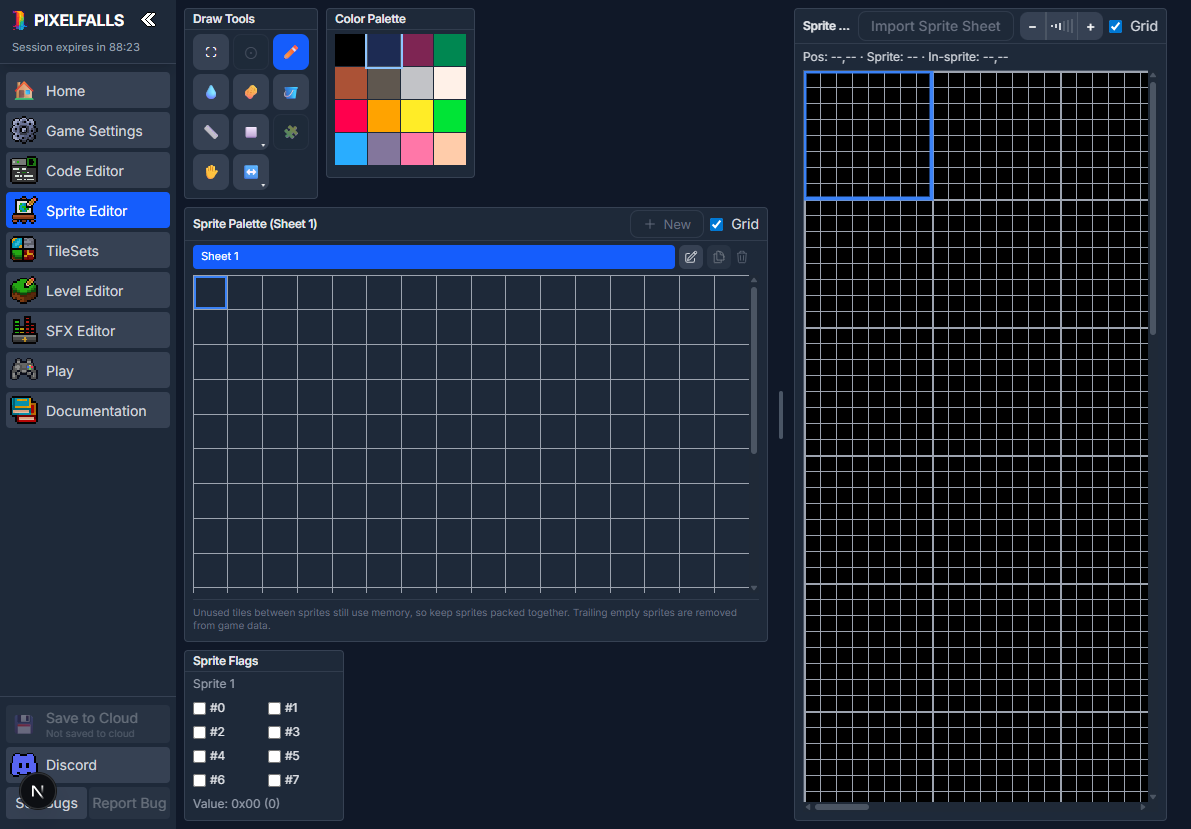
Sprite sheets and IDs
Each sprite sheet is a fixed 16×16 grid containing 256 sprites. Every sprite is 8×8 pixels, so one sheet is 128×128 pixels.
Lua uses global, 1-based sprite IDs:
- sheet 1 contains IDs 1–256;
- sheet 2 contains IDs 257–512;
- later sheets continue in the same fixed ranges.
Deleting a sheet clears the sprites in that ID range. It does not renumber sprites on other sheets.
Guest and Free projects have one sheet. Paid projects can have up to eight sheets, for 2,048 sprite IDs.
Managing sheets
Use the sheet picker to create, duplicate, rename, select, or delete sheets. Sheet names help organize the editor but do not change sprite IDs.
Export Sprite Sheet downloads the current sheet as a 128×128 PNG (one pixel per sprite pixel). Empty pixels use true transparency. The file is named from the sheet name.
Import Sprite Sheet loads artwork into a sheet and requires a paid plan. The control remains visible when unavailable and explains the requirement in its tooltip.
Canvas and palette
The main canvas edits the active 128×128 sheet. Use:
- zoom controls to change the display scale;
- the grid toggle to show pixel and 8×8 sprite boundaries;
- the color palette to choose an indexed color;
- the Sprite Palette to select a sprite or drag across several sprites.
The pointer readout shows the sheet position, sprite ID, and position inside the current 8×8 sprite.
Grid color is an IDE preference under Home → IDE.
Painting
The Sprite Editor supports Brush, Eyedropper, Erase, Fill, Line, Shape, Pan, and Transform tools.
Important behaviors:
- Press I, Alt-click, or right-click to sample a color.
- Fill stays inside one 8×8 sprite by default.
- Hold Shift while using Fill to flood across sprite boundaries.
- Shape Options provides filled and outlined rectangles and ellipses.
- Transform Options provides horizontal flip, vertical flip, and rotate.
See Tools & Shortcuts for the full list of buttons and keys.
Selecting and transforming pixels
Drag with Select to choose a pixel rectangle. You can then move, copy, cut, paste, delete, resize, or transform it.
- Double-click an 8×8 tile to select that sprite.
- Hold Shift to add pixels to the selection.
- Hold Ctrl/Cmd to subtract pixels.
- Use Ctrl/Cmd+C, X, and V for clipboard actions.
- Press Delete or Backspace to clear selected pixels.
- Hold Shift while resizing to preserve the aspect ratio.
Selection Properties provides exact X, Y, width, and height values. Resize algorithms include Nearest, Bilinear, Bicubic, and Majority. Nearest or Majority usually preserves hard pixel-art edges best.
When both an internal pixel selection and an operating-system image are available to paste, PIXELFALLS asks which source to use.
Sprite Palette
The Sprite Palette shows the current sheet as individual 8×8 sprites. Drag over several cells to create a multi-sprite selection for map painting.
Right-click a sprite in the palette to create a Node class that uses it. Continue configuring the class in the Code Editor.
Sprite flags
Each sprite has eight flags. Select a sprite and toggle its flag checkboxes, or review the combined hexadecimal value.
Flags are useful for grouping map tiles by behavior without hard-coding every sprite ID. Read them from Lua with the relevant functions in the Sprites API.
Undo and redo
The Sprite Editor uses keyboard history controls:
- Ctrl/Cmd+Z — Undo
- Ctrl/Cmd+Y or Ctrl/Cmd+Shift+Z — Redo
Using sprites
Use sprite IDs with functions such as drawSprite(), select sprites as Level Editor tile brushes, or assign them to Node classes.
See: