Using the IDE
Tile Sets
Tile Sets creates reusable terrain whose edges and corners update automatically when it is painted in a map.
Creating a Tile Set
Select New Tileset, enter a name, and choose a starting template:
- Terrain provides a layout for connected ground or islands.
- Wall provides a layout suited to wall-like boundaries.
- Blank starts without template artwork.
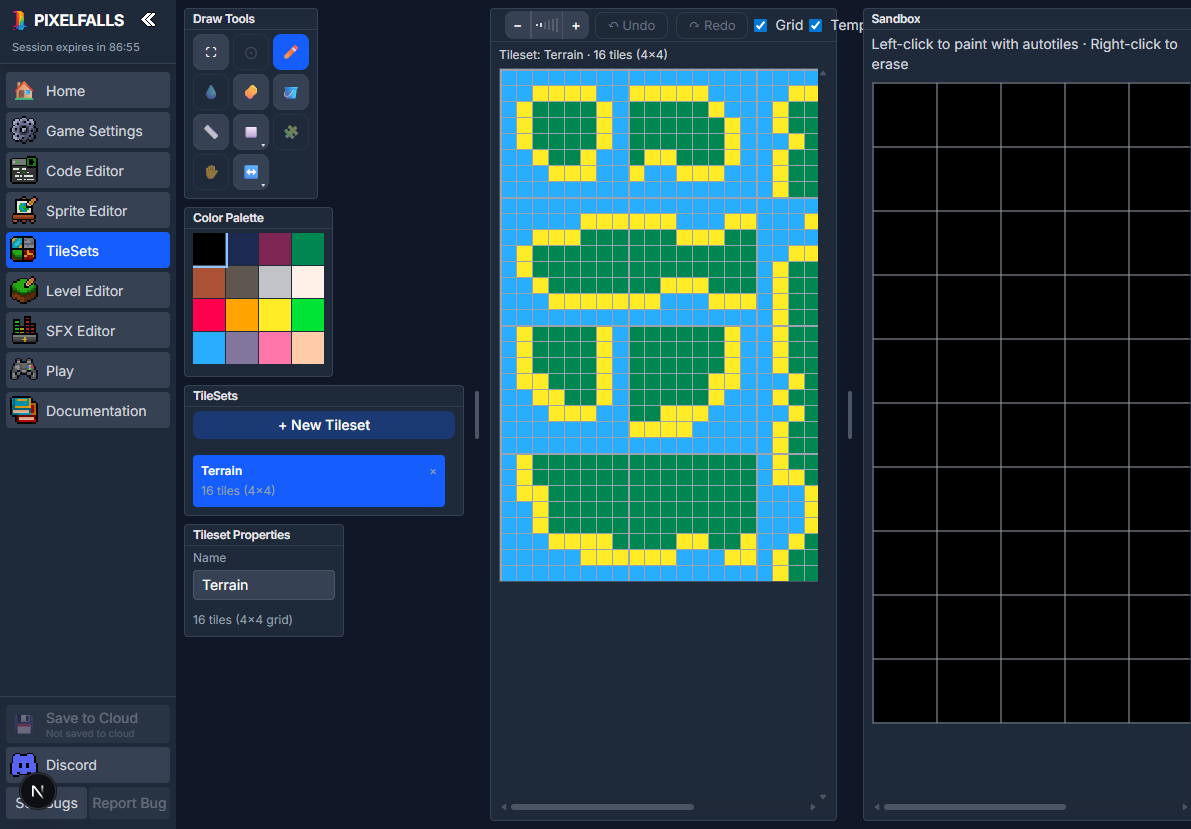
Each Tile Set is a fixed 4×4 group of 16 sprites. Editing it updates the linked sprite pixels in the project rather than creating a separate image format.
Editor layout
- Draw Tools edits the source pixels.
- Color Palette chooses the active indexed color.
- TileSets selects, creates, and deletes Tile Sets.
- Tileset Properties renames the selected Tile Set.
- TileSet Editor displays the 4×4 source grid.
- Sandbox previews how the Tile Set joins when used as connected terrain.
Template overlay
Enable Template to display the edge-layout guide over the 4×4 source. Use the guide to place artwork for the possible combinations of neighboring terrain.
The overlay is only an editing aid. It is not exported as artwork.
Drawing and selecting
Tile Sets supports Select, Brush, Erase, Fill, Line, Shape, and Transform. It uses the same pixel-tool behavior as the Sprite Editor:
- Fill stays within an 8×8 sprite by default.
- Shift+click with Fill crosses sprite boundaries.
- selections support move, cut, copy, paste, delete, and transforms;
- Ctrl/Cmd+Z undoes and Ctrl/Cmd+Y or Ctrl/Cmd+Shift+Z redoes.
Hold Space and drag to pan the editor. The Pan button is disabled because panning is temporary in this workspace. Eyedropper and Autotile are also unavailable here.
See Tools & Shortcuts.
Testing in the Sandbox
The Sandbox lets you check the Tile Set rules before using them in a real map:
- left-click or drag to paint connected terrain;
- right-click or drag to erase it.
As the painted pattern changes, PIXELFALLS selects the matching edge, corner, or center sprite from the 4×4 source.
If a connection looks wrong, compare that Sandbox cell with the source position indicated by the template overlay.
Using a Tile Set in a level
- Open the Level Editor.
- Select a tile layer.
- Choose Autotile or press A.
- Open Autotile Options and select the Tile Set.
- Paint connected terrain on the map.
Autotile chooses one source sprite for each painted cell. For ordinary manual map painting, select sprites directly from the Sprite Palette instead.
Managing source sprites
Because Tile Sets use global sprite IDs, their artwork is also visible in the Sprite Editor. Editing those linked pixels from either editor changes the same project data.
Sprite-sheet limits therefore also apply to the space available for Tile Set artwork. See Sprite Editor.