Using the IDE
Sound Editor
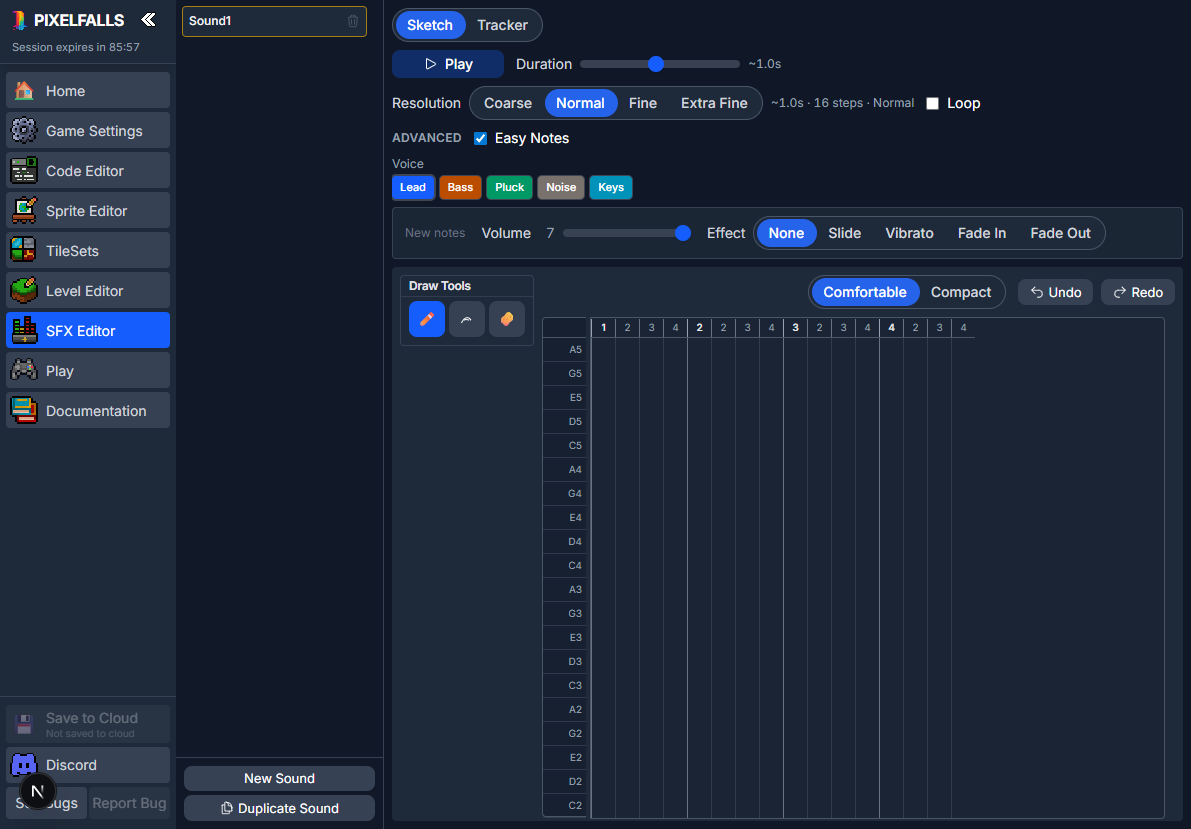
The Sound Editor paints notes across pitch rows and time columns. Use it for short sound effects and for longer tunes.
Managing sounds
The Sound Explorer on the left lists sound effects and tunes in the project. Drag the divider to change its width. Each row shows a speaker icon for a sound effect, or a note icon for a tune, then that pool’s number, then its name. Tune 0 is not sound effect 0. Names are unique across both.
- select a sound to edit it;
- double-click its name to rename it;
- drag a sound up or down to reorder the list. Dropping it on a track does not change the list, and the sound’s number stays the same;
- use New Sound beside the title, then choose New SFX or New Tune;
- use New Folder beside the title to group sounds. Drag a sound onto a folder. Removing a folder leaves those sounds in the project. A folder does not change a sound’s number or name;
- use Duplicate Sound beside the title to copy the selected sound and its settings;
- hover a sound to show Play and Delete. Hover a folder to show Remove Folder.
A sound effect stops at 10 seconds or 16 bars, whichever comes first. A tune can be up to 1.5 minutes. With Loop Markers on, it can play an intro, then a loop, then an ending. Guest and Free projects can hold 64 sound effects and 8 tunes. Paid projects can hold 256 sound effects and 16 tunes. Deleting a sound frees its number, and the next one of that kind takes the lowest free number. Sounds you keep hold their numbers. Names must start with a letter or underscore, contain only letters, numbers, and underscores, and be unique. A project with more sounds than the current plan allows keeps those sounds and opens read-only until you upgrade.
Understanding the grid
Time moves from left to right and pitch moves from low to high vertically. A note starts in one time column and can extend across several columns.
The timeline uses a fixed 4/4 grid with sixteen columns per bar (sixteenth notes). New sounds open with a few bars to paint in. After that, one empty bar stays after your last note, and painting into that bar adds another. + at the end of the step ruler adds a bar of space. Removing notes drops unused bars back to that one empty bar. Playback length follows your notes (through the last sounding note), not the empty space on the right.
The ruler divides the timeline into steps. Use the zoom control (− / +) or the mouse wheel to change cell size without changing the sound.
Draw tools
| Tool | Shortcut | Behavior |
|---|---|---|
| Select | V | Drag a box to select notes. Drag the selection to move. Hold Alt while dragging to duplicate. Shift adds to the selection. Ctrl/Cmd removes from the selection. |
| Draw | B | Drag a path across pitches and time to paint notes. Click a note and drag to move it. Hold Shift and drag a new or existing note to extend it; move up or down while doing that to set a slide. |
| Erase | E | Click or drag to remove notes. |
Press Space to play or stop the preview. Escape, or switching to Draw or Erase, clears the selection. Delete removes the selection. Ctrl/Cmd+C / V copy and paste notes.
A full list of tools and shortcuts (including drawing tools in other editors) is in Tools & Shortcuts.
Sound references
Drag a sound from the list onto another sound’s open timeline to place a live reference in the Ref row above the pitch grid (named clip). The clip is not editable as notes; drag it to move. Edits to the source sound update every reference. References play on the destination’s tempo grid.
Right-click a reference and choose Copy Source Track to replace the clip with a copy of its notes (then editable). Remove Reference deletes the clip only.
A sound that already contains references cannot itself be dropped onto another timeline. A tune can hold a sound effect. A sound effect cannot hold a tune, and a tune cannot hold another tune. You cannot delete a sound while other sounds still reference it. Cart export flattens references into notes — published games do not keep live links.
Piano-key input
Move the pointer over a time column, then use the computer keyboard like a small piano:
- the lower row uses
Z S X D C V G B H N J M; - the upper row uses
Q 2 W 3 E R 5 T 6 Y 7 U; - hold Shift to move the lower row down an octave or the upper row up an octave.
The note is placed at the active keyboard step.
Instruments
Choose an instrument before painting:
- Lead — square-like tone;
- Bass — saw-like low tone;
- Pluck — short triangle-like tone;
- Noise — useful for impacts, percussion, and texture;
- Keys — smooth sine-like tone.
When notes are selected, choosing an instrument changes all of them. Selecting an instrument also previews it. A sound can use several instruments, with up to four notes starting on the same step.
Selecting and editing notes
Click a note to select it. The Note Inspector changes the selected note, or supplies defaults for newly painted notes:
- Volume ranges from 1 to 15.
- None plays the note without an added effect.
- Slide moves from the starting pitch to another pitch.
- Vibrato varies pitch while the note plays.
- Fade In raises volume over the note.
- Fade Out lowers volume over the note.
Vibrato is unavailable for the Noise instrument.
A slide is drawn as a diagonal block from its start pitch to its target pitch. Notes off that path stay visible. Selected slide notes show pitch handles at each end. Drag a handle to change that pitch, or right-click the note for Slide Up, Slide Down, and Reverse actions. You can also set a slide with Draw: hold Shift and drag up or down as you extend a new or existing note.
Tempo
Tempo (BPM) sets how fast the grid plays. A sound effect can be from 40 to 1000. A tune can be from 40 to 300. Type a number next to the slider, or drag the slider. The approximate length (~Ns) updates from your notes. There is no separate Duration or Resolution control — denser timing comes from the sixteenth-note grid at a suitable tempo.
Preview section markers
Green and red markers on the timeline set a listen window for a sound effect or a tune. Play loops that section until you stop. Drag the markers, or click and drag across the step numbers. These markers are not saved.
Note changes apply within about a step or two while preview is running.
Loop Markers
Loop Markers is a tune option in the Advanced row. When it is off, the whole tune loops, and the marker row stays hidden. When it is on, a row just above the Ref row shows three bands: Intro, Loop, and Ending.
Drag the handle between Intro and Loop, or the handle between Loop and Ending. The intro always starts at the beginning of the canvas, and the ending always finishes at the far end. Either of those bands can be empty. The loop is at least one column, and both handles can sit on any column. Turning the option off hides the row and keeps the handle positions for next time. The green and red preview markers are separate, and they are not saved.
Easy Notes
Easy Notes limits painting to a pentatonic set of pitches, making quick melodic effects less likely to clash. Existing notes outside the set remain visible.
Clipboard and history
- Delete or Backspace removes the selected note.
- Ctrl/Cmd+C copies it.
- Ctrl/Cmd+V pastes it at the active keyboard step.
- Ctrl/Cmd+Z undoes.
- Ctrl/Cmd+Y or Ctrl/Cmd+Shift+Z redoes.
Undo history is maintained for the current sound.
Previewing and testing
The Sound Editor uses browser audio for immediate previews. Press Play to loop the marked section. Set that region by dragging across the step-number ruler at the top of the timeline, or by dragging the green (start) and red (end) markers. The markers stay in the editor.
The exported game uses the PIXELFALLS runtime. Timing, notes, and supported effects are preserved, but the exact timbre can vary slightly between preview and runtime.
Always test important sounds in Play, especially when several sounds share the four runtime audio channels.
Playing a sound from Lua
A name is usually easiest to read. With no channel, playSFX uses the first idle channel from 0 to 3. If they are all busy, it replaces the one that has been playing the longest, and it leaves a looping sound alone until every channel in the search is looping. The call returns that channel, or nil if the sound does not exist.
playSFX("Jump")
Pass true to loop that sound until stopAudio:
playSFX("Alarm", true)
To pin a channel, pass its number: playSFX("Alarm", 2). That replaces whatever is already playing there, including a loop. A sound index works the same way: playSFX(0, 2). To loop on that channel, pass true after it: playSFX("Alarm", 2, true).
start and end select a column range. Both are 0-based. Playback begins at start, and end is not played. Omit them to play the whole sound. Omit only end to play from start through the last note. Notes that begin before start are skipped.
local ch = playSFX("Jump", true, 16, 24) playSFX("Jump", 2, false, 16, 24) if audioPlaying(ch) then stopAudio(ch) end
audioPlaying(channel) stays true through rests inside the sound, and stays true for a loop until stopAudio. It is false when the channel is idle or the number is outside 0 to 3. An invalid channel, or an end column at or before the start, plays nothing and returns nil.
A tune uses its own channel, so it does not take one of the four effect channels:
-- Loop the tune. The number in playTune("Theme", 16) is a loop count, not a start column. playTune("Theme") playTune("Theme", 16) -- Leave the loop and play the ending. endTuneLooping() -- Or fade into the ending over one beat. playTuneEnding()
tunePlaying() is true through the intro, the loop, and the ending. stopAudio() with no channel stops the tune as well as the effect channels. stopAudio(channel) still affects only channels 0 to 3. See the Audio API.
Current limitations
- A maximum of four notes can start on one step.
- Vibrato cannot be applied to Noise.
- A new sound effect stops at 10 seconds or 16 bars, whichever comes first, and a new tune stops at 1.5 minutes. Tunes stop at 300 BPM. A slower tempo that would push the notes past that limit is rejected. A sound effect that is already longer stays visible until it is shortened or moved to a tune.
- Browser preview and runtime playback should both be checked before publishing.